Different computer applications use different types of files to store and manage data. One file type you may come across is a DAT file. The problem is that .dat does not refer to one specific type of file. Different programs can use DAT files to store completely different kinds of data.
Sometimes, a DAT file may contain text or application data. In other cases, it could be related to a video, an email attachment, or a specific program. This makes it difficult to know which application you should use to open it.
In this guide, We’ll explain what DAT files are, how to identify what they contain, and how to open different types of DAT files.
Also Read: How to Open ODS File
What exactly is a DAT File?
A DAT file is a generic data file that usually stores information used by a particular application. Unlike formats such as .txt, .jpg, or .mp3, the DAT extension does not tell you exactly what is inside the file.
Some DAT files can be opened as text, while others contain binary data that is only useful to the program that created them. You may also find DAT files stored alongside other application files, including DLL files.
For the most part, program-specific DAT files are kept in application folders and do not need to be opened manually. You may notice them when searching through program folders or when a DAT file arrives as an email attachment.
This is why there is no single application that can open every DAT file. You first need to understand where the file came from and what type of data it contains.
How to Find Out What a DAT File Contains?
Before trying random applications, check where the DAT file came from. Its location can often provide a useful clue.
For example, a DAT file stored inside an Adobe application folder is likely related to Adobe software. Similarly, a DAT file received as an email attachment may be an email-related file rather than a regular document.
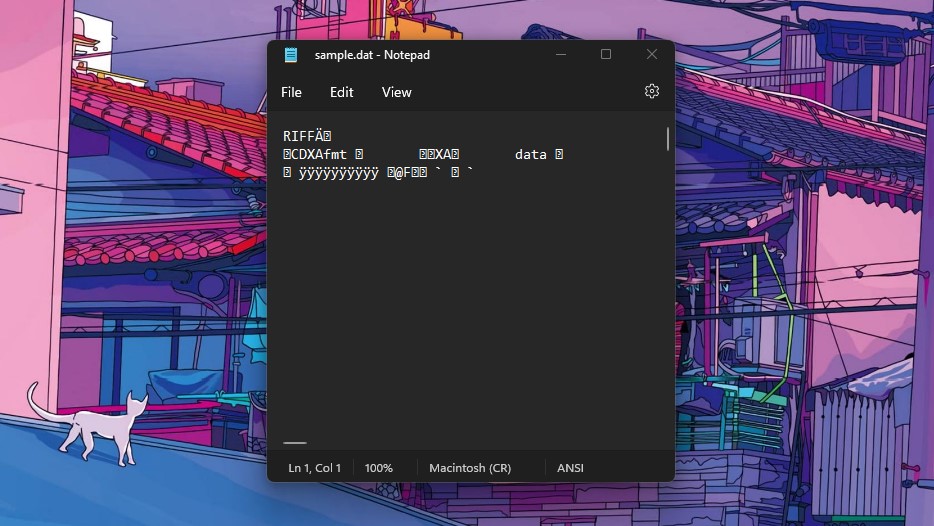
You can also check the file size and try opening a copy of the file with a text editor. If you see readable text, it may be a text-based DAT file. If you only see unreadable characters, the file may contain binary or application-specific data.
On Windows, you can also make sure file extensions are visible in File Explorer by going to View → Show → File name extensions.
Remember that changing a file’s extension does not actually convert the file into another format. Windows itself notes that changing an extension only changes the filename, not the underlying file format.
Also Read: How to Open SWF File
How to Open DAT Files?
As stated earlier, DAT files can contain different types of data. The right way to open one depends on where it came from and what it contains. Here are some common ways to open DAT files.
1. Open Text-Based DAT Files
Some DAT files are text-based and can be opened using a text editor such as Windows Notepad.
The location of the file can also help you understand what it is used for. For example:
C:\Program Files (x86)\Common Files\Adobe\XMP\...\FileInfo_pt_BR.dat
Looking at the file path, you can see that the file is associated with Adobe software.
If you are unsure about the file type, you can try opening a copy with a text editor. If the file contains readable text, you can inspect it normally. If it displays mostly random or unreadable characters, it is probably not a regular text file.
2. Video DAT Files
Some older video applications and formats use the .dat extension for video data. If you know that your DAT file contains video, you can try opening it with a media player such as VLC.
VLC supports a wide range of multimedia formats and codecs, although it cannot open every possible DAT file because the DAT extension itself does not identify the underlying video format.
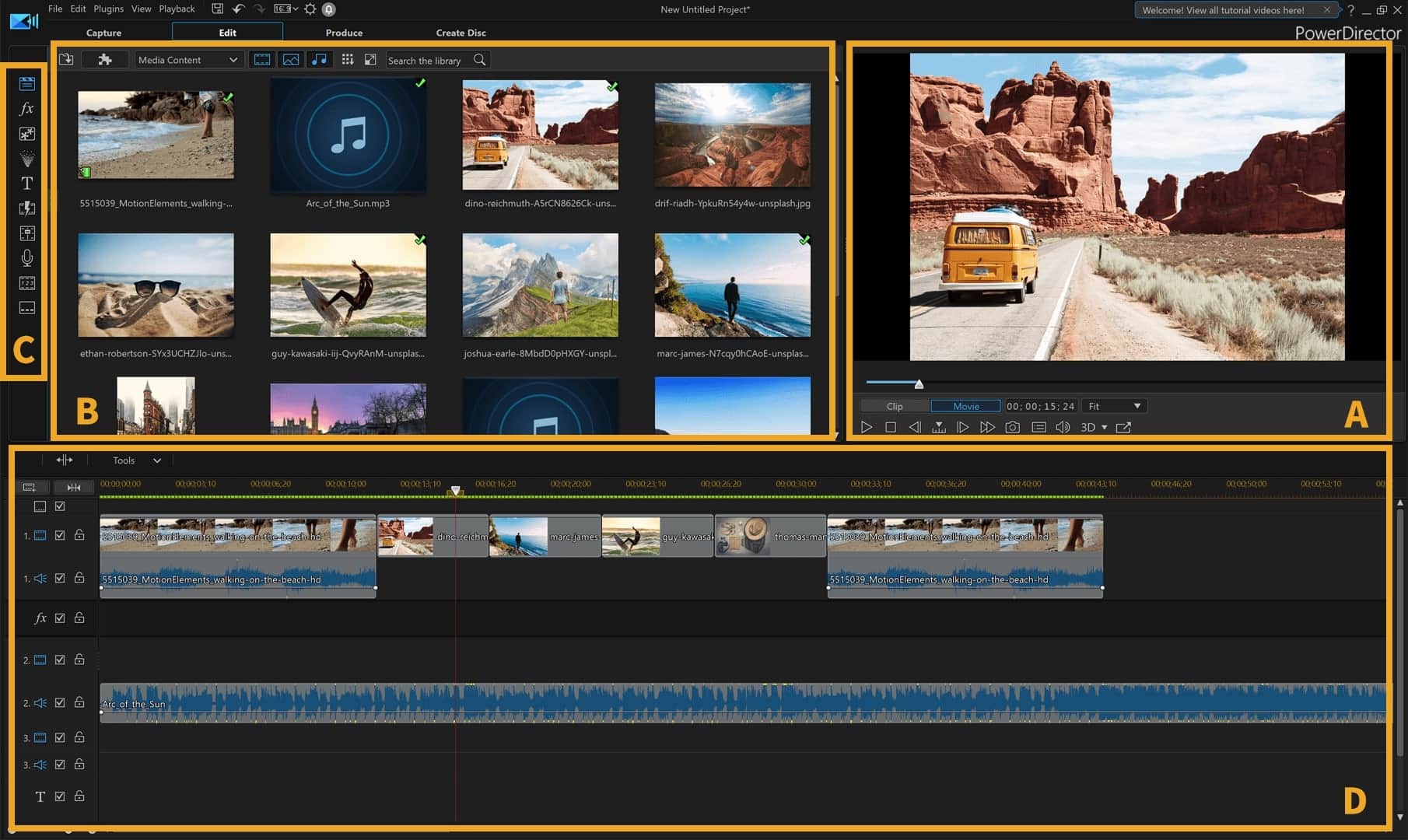
If the DAT file came from a particular video application, it is also worth checking that application’s documentation or the folder where the file was created. This can help you determine which program is expected to open it.
3. DAT Files on Email Attachments
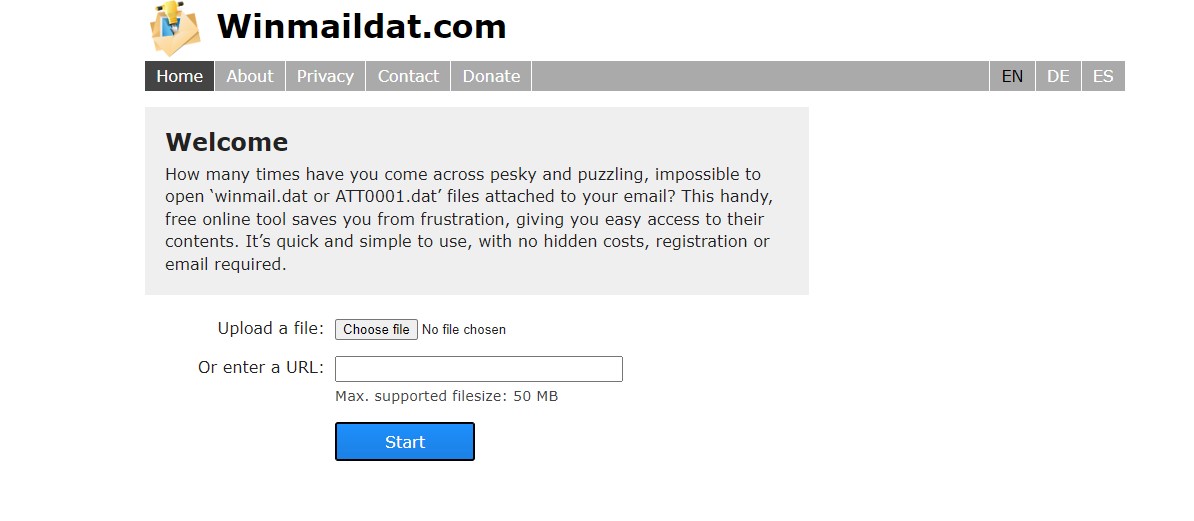
You may sometimes receive DAT files as email attachments. A common example is winmail.dat.
These files can be created when email content is sent using Microsoft’s Transport Neutral Encapsulation Format (TNEF). The file may contain information about an email’s formatting or attachments.
If you receive a winmail.dat file, do not randomly rename it to .docx, .jpg, or another extension. Instead, use a compatible winmail.dat reader or ask the sender to resend the attachment in a standard format.
For files received from an unknown sender, be cautious before opening them. A DAT extension by itself does not guarantee that a file is safe.
4. Miscellaneous DAT Files
Some DAT files are created specifically for a particular application. In these cases, there may be no useful way to open the file manually.
For example, a program may use DAT files to store configuration information, databases, cached data, or other internal information.
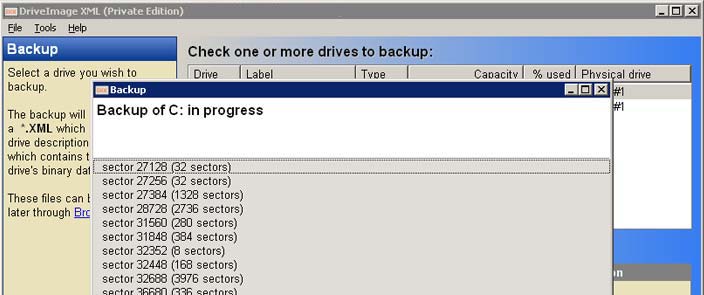
If you find one of these files inside an application’s installation or data folder, it is usually best to leave it alone unless you know what the file does. Opening or modifying application-specific files can cause unexpected problems with the program.
How to Convert a DAT File?
Converting a DAT file is not as straightforward as converting common formats such as JPG, PNG, or DOCX.
The reason is simple: .dat does not tell you what type of data the file contains. Before converting it, you need to identify the actual format or the application that created it.
If you know that the DAT file contains video, for example, you may be able to open it with a compatible video application and export it to a format such as MP4.
Similarly, if a DAT file is actually an email attachment container, you need to extract the original attachment rather than simply converting the DAT file.
Can You Rename a DAT File?
You may have seen advice suggesting that you can rename a DAT file to .jpg, .docx, or another extension.
This only works in specific situations where you already know what the file actually contains and the original extension was changed or hidden. Simply changing .dat to .jpg does not convert the file into an image.
For example, renaming a genuine Word document from .dat to .docx may allow it to open if the file was originally a DOCX file. But renaming an unrelated application data file to .docx will not turn it into a Word document.
If you are unsure about the file type, keep the original file unchanged and work with a copy.
Also Read: How to Open ISO Files?
Frequently Asked Questions
1. Are .dat files dangerous?
A DAT file is simply a file extension and does not tell you whether the file is safe or unsafe. Some DAT files are harmless application data, while others may contain information that should only be handled by the program that created them.
As with any file, avoid opening DAT files from unknown or untrusted sources.
2. Can I open a DAT file with Notepad?
You can try opening a DAT file with Notepad if you suspect it contains text. If the file displays readable information, you can inspect it there.
However, many DAT files contain binary or application-specific data and will appear as unreadable characters in Notepad.
3. Can I convert a DAT file to MP4?
Only if you know that the DAT file contains compatible video data. You cannot convert every DAT file to MP4 simply because it has a .dat extension.
If the file is a video, a compatible media player or video conversion tool may be able to process it.
4. What is winmail.dat?
winmail.dat is an email-related file that can contain formatting information and attachments from messages sent using Microsoft’s TNEF format. If you receive one, you can use a compatible winmail.dat reader or ask the sender to resend the attachment in a standard format.
5. What is Bootstat.dat?
Bootstat.dat is a Windows system file associated with startup information. It is used by Windows as part of its boot process and is not a file that most users need to open manually.
Also Read: How to Open PY Files
Concluding Words
DAT files can be confusing because the .dat extension does not identify one specific file format. Different applications can use DAT files for different purposes, so the right way to open one depends on where it came from and what it contains.
If the file is text-based, you can try a text editor. If it contains video, a media player such as VLC may work. For email-related files such as winmail.dat, you will need an appropriate reader or the original attachment from the sender.
Most importantly, don’t randomly rename or modify a DAT file. First identify what created it. This will give you a much better idea of how to open or convert it without damaging the original data.